Some drawings want real crayons. The wax, the pressure, the way a color goes darker where you press harder: a screen can’t give you that. So every drawing on Live Coloring Book can also be printed, colored by hand and brought to life with one photo. The phone reads the colors from the paper, and the drawing walks into its world in exactly those colors.
Here is how it works, step by step, and what to do when a photo doesn’t read.
1. Print a drawing
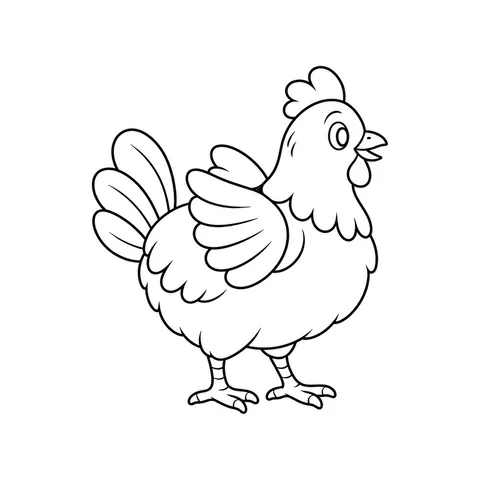
Open any drawing and print it. Every page prints on A4 or Letter, with a thin frame around the drawing, a small square in each corner and a code at the top. Those squares and the code are how the phone finds the drawing and knows which one it is, so the photo trick only works on pages printed from Live Coloring Book.
Collections of pages print together too, if you want a stack for a rainy afternoon.



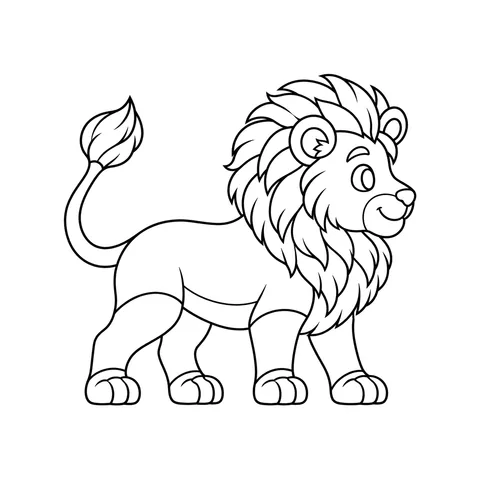

2. Color it
Use whatever you like: crayons, markers, colored pencils, paint if it dries flat. Some things help the phone read it well:
- Fill the shapes. A shape with color in it comes alive in that color. The more of each shape you fill, the more evenly it reads.
- Choose strong colors. Very pale yellow on white paper is hard to tell apart from the paper itself.
- Leave the corner squares and the code alone. Coloring over them is the most common reason a photo can’t be read.
You don’t need to stay inside the lines perfectly. Crayon texture is part of the charm, and it shows on the screen.
3. Take the photo
There are two ways to get to the camera:
- Scan the code at the top of the sheet with your phone’s camera. It opens that drawing’s page, ready for the photo, in the sheet’s language. Nothing to download.
- Or open the drawing on the site and tap Photo of your drawing.
Lay the sheet flat in good light and hold the phone straight above it. Fit the whole sheet in the frame, including all four corner squares. Daylight from a window is ideal, and a ceiling light works too as long as your own shadow doesn’t fall across the page. If you already took a photo earlier, you can choose it from your photos instead.

4. Watch it come alive
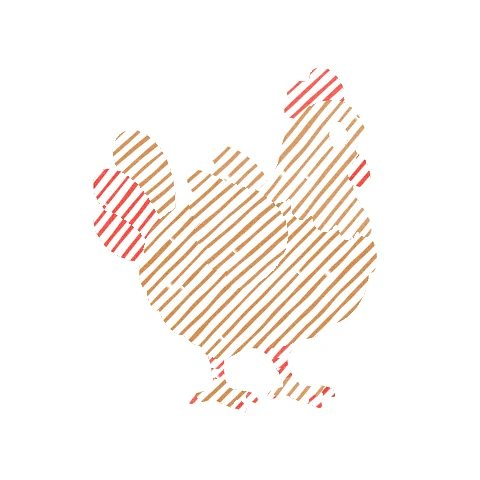
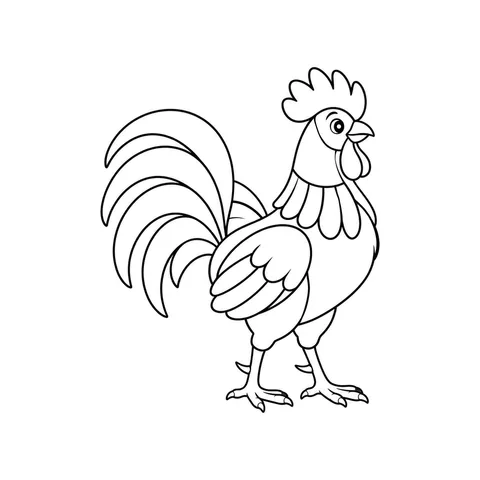
The phone reads the colors of every shape. Then the drawing is cut out of the photo like a sticker, lifts off the paper and walks into its world, in your colors. The rooster in our photo went to Sunny Farm; a lion goes to the jungle.
If a color came out wrong, maybe a shadow made orange look brown, tap Something look off? Fix the colors and change that shape by hand.

Your photo stays on your phone
The photo never leaves your device. The phone does the reading itself, and all we get are the colors of the shapes and a few numbers describing how they were colored, which is what lets crayon look like crayon on the screen. There is no account to make before you try it.
When a photo doesn’t read
The phone tells you what went wrong. The usual fixes:
- “That doesn’t look like one of our sheets.” Get all four corner squares in the photo.
- “We couldn’t see the complete frame.” Step back a little, or turn the phone so the whole sheet fits.
- “We couldn’t line up the drawing.” Hold the phone straight above the page, and flatten the sheet.
- “We couldn’t read the code.” The code at the top is covered or colored over. Make sure it is in the photo and clean.
- “We didn’t find any colors.” Color a little more, or take the photo in brighter light.
At a party
The same photo works at a party screen. Every guest colors a page, one phone that joined the party takes the photos, and each drawing walks onto the TV instead of your own screen. A birthday party with one TV and a class party in 40 minutes have plans for both.